
Bring your Playmos to the couch.
Big Picture puts the Hub on your TV. Playmos Controller keeps your account on your phone. Buddy Mode gives up to four players their own place on the couch.
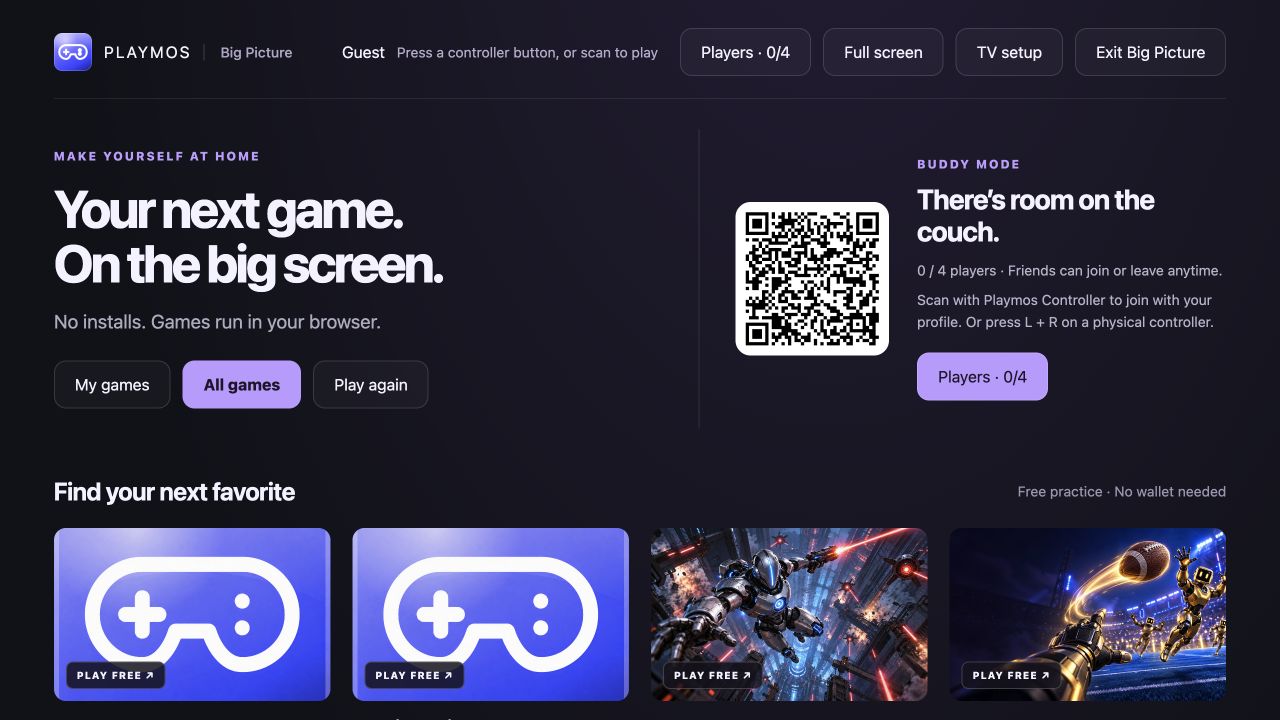
Open Big Picture on your TV#
Open Big Picture in the TV browser, or display the Hub from your computer. The games run in that browser. Choose My games, All games or Play again. Pair your phone to bring a limited profile view to the TV; your phone registration remains on your account when you leave.
Install Playmos Controller once#
- Scan the TV’s QR code with your phone’s normal camera to open Playmos Controller.
- Install Playmos Controller, or use your browser’s Add to Home Screen option. On iPhone, use Safari’s Share menu.
- Launch it from the home-screen icon. The browser page stays at the installation gate until the app runs in standalone mode.
- Sign in to your Playmos account and register this phone. Its registration is saved to your account.
- For future TVs, open the installed app and tap the controller icon in the bottom navigation. Allow the camera and scan the TV from inside the app.
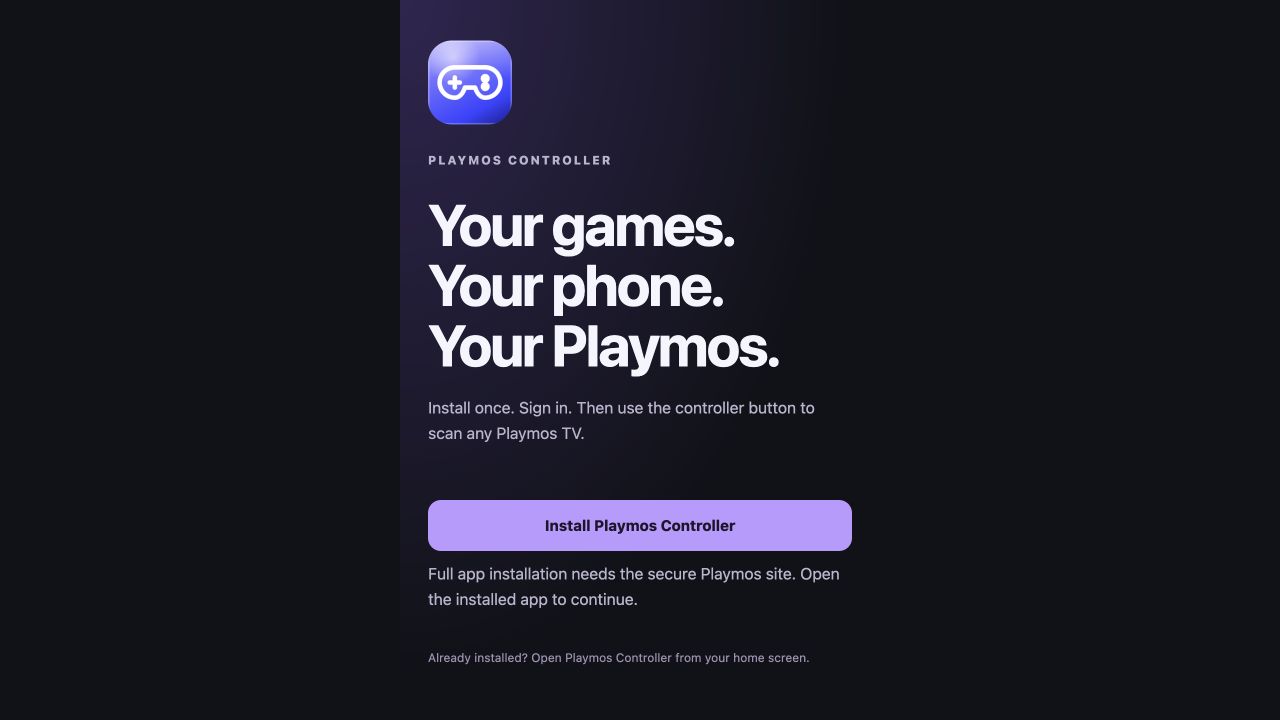
Camera scanning and service workers require a secure HTTPS site on your phone. An ordinary LAN HTTP address is useful for reviewing the TV layout, but does not prove the phone installation flow.
Your games, profile and wallet#
The installed app brings together your saved and recent games, profile and account controls. Account → Controllers lets you rename or revoke registered phones. A registered phone can request a limited TV profile session; the TV approves that request. Controller registration alone never signs a TV into your full account or wallet.
Use Leave TV when you finish. This removes the TV profile session while keeping your phone registered for next time. Your wallet stays on the phone. Buying IAP from a friend’s TV with phone approval and keeping the entitlement on your account remains a follow-up.
Choose players in Buddy Mode#
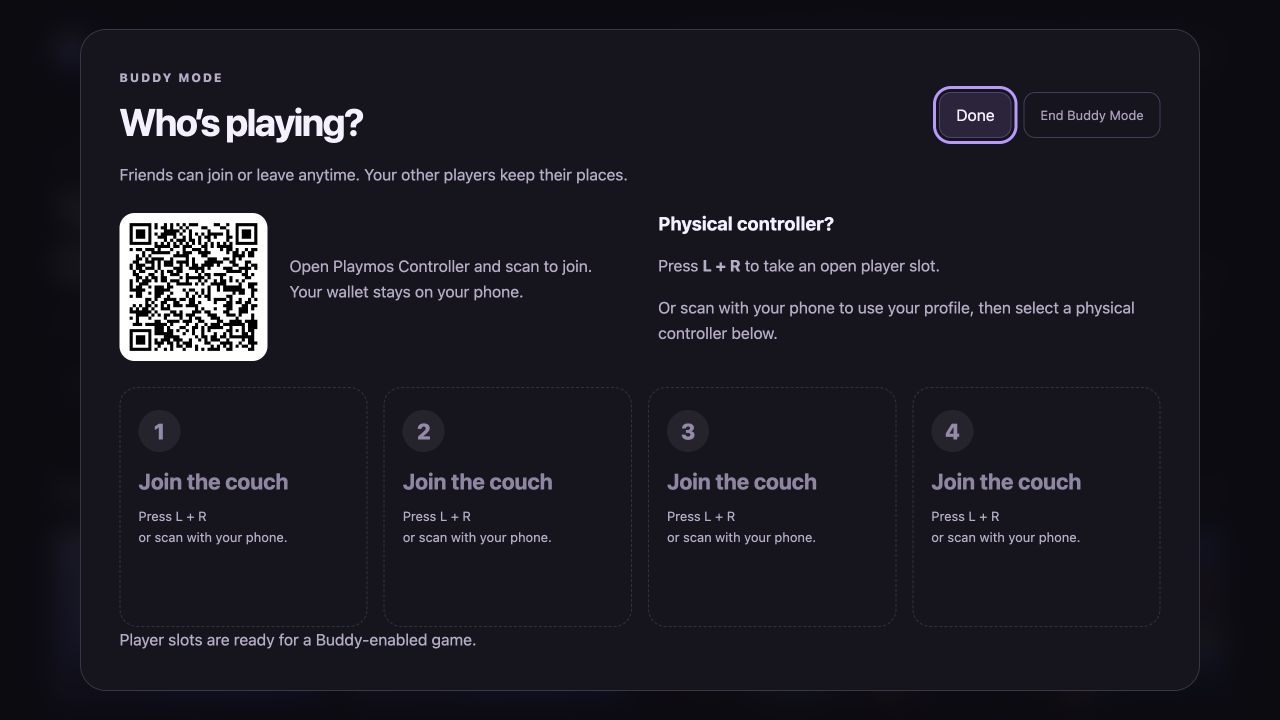
Open Buddy Mode for the separate couch co-op experience. The Who’s playing? screen has four player slots. Friends can join before or during a game.
| How you join | What happens |
|---|---|
| Physical controller | Connect it to the TV computer and press L + R to take an open slot as a guest. |
| Phone with your profile | Open the installed Playmos Controller, tap the controller scanner and scan the Buddy QR. The TV approves your request. |
| Profile plus physical controller | Join with your phone, then select an available physical controller for your player slot. |
| Virtual controller | Keep using your phone’s controls when there is no spare physical controller. |
Choose Done to return to the game shelves; the room stays open and the QR remains visible. Open Players from Big Picture or the game toolbar whenever someone joins, changes controllers or leaves. A game must explicitly support Buddy controls to receive separate player inputs.
Drop in and out anytime#
A player can leave from their phone, or the host can remove them from the player screen. Other players keep their slots. A new arrival takes an open slot with a new player identity. After removing a physical controller, release L + R before pressing it again to rejoin.
Lost input updates release held controls. A disconnected phone’s seat retires after 60 seconds; a room without a TV heartbeat expires after two minutes. End Buddy Mode closes the room and removes its guest profiles. Leaving a room does not revoke the phone’s account registration.
Returning to Playmos#
A service worker caches the generic app shell and versioned static files, including the scanner worker and decoder. QR decoding runs in a dedicated worker. Returning players can reopen the shell offline; library updates, sign-in, pairing, live controller input and game downloads still need a connection. Account, wallet and API responses are excluded from this shell cache. Updates wait until existing app windows close.
Adding Buddy support to a game#
The game-side adapter is a source candidate at apps/hub/public/buddy-client.mjs, not a published SDK release. Bundle it with your game, configure the exact trusted Hub origin and use connectBuddyHost with onPlayers, onInput and onStatus. Track players by ID and keep their stable slot numbers. Release controls when a player leaves or the host disconnects. Profile display is not login, purchase or score authority.
Existing single-player games do not become multiplayer automatically. The local game preview also needs its game server reachable from the TV browser; a loopback-only game URL can fail from another device. See Phone & gamepad controllers for the separate portable controller SDK and managed party-room integrations.