
Playmos Controller
Phones and real gamepads. One input format. In your game, on your website, or inside the Playmos Hub.
Add the controller SDK#
The 0.1.0 source candidate supplies ESM, CommonJS and TypeScript declarations with no runtime dependencies. Before registry publication, install the exact reviewed playmos-controller-0.1.0.tgz archive. After publication, pin @playmos/[email protected]. Obtain a short-lived controller session from your authenticated backend; studio secret keys stay on that backend.
Pair inside your game#
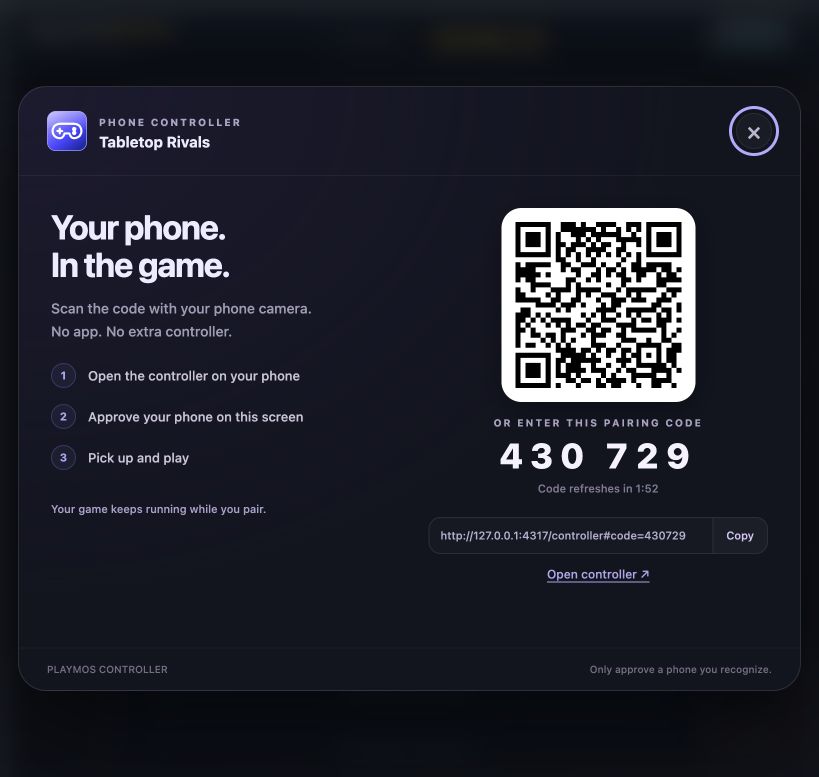
The SDK owns the complete in-game pairing dialog: QR code, six-digit invitation, copyable link, expiry countdown, explicit phone approval and disconnect. The phone screen guides pairing, approval and play. Your game only maps the input.
import { PlaymosControllers, mountControllerPairing, createControllerInput } from '@playmos/controller';const controls = createControllerInput({ onInput: input => game.setControls(input) });const pairing = mountControllerPairing(document.body, {title: 'Your game',client: new PlaymosControllers({ sessionToken: controllerSessionToken }),onInput: input => controls.update('phone', input),onStatus: status => controls.setActive('phone', status === 'connected'),onVisibility: open => controls.setEnabled(!open),});document.querySelector('#phone-controller').onclick = () => pairing.open();// On game exit: await pairing.destroy();
The invitation lasts two minutes and refreshes while the dialog is open. A phone cannot control your player until you approve it. Continue playing hides the dialog and keeps the connection; disconnect revokes it. Pairings bind one studio, game, player and session. Tokens stay in memory and never appear in a pairing URL.
Real gamepads#
Use the browser Gamepad API through the same normalized controls. The SDK handles standard mapping, radial stick deadzones, device selection, hot plug, focus and neutral release. Physical input needs no service or account.
import { watchGamepads } from '@playmos/controller';const physical = watchGamepads({enabled: () => !pairing.isOpen,onInput: input => controls.update('gamepad', input),onStatus: status => controls.setActive('gamepad', status === 'connected'),});// On game exit: physical.destroy();
Press a controller button to expose the device to the browser. Use HTTPS or loopback development, and delegate gamepad permission in cross-origin frames. Browser/device support varies. Nonstandard devices can supply mapGamepad(device); readGamepadInput(device) exposes the standard mapper directly. See the Gamepad specification.
Hub and other game portals#
The Hub forwards physical input to a game that explicitly opts in through the SDK. The same build reads local gamepads when opened independently.
import { connectControllerHost, watchGamepads } from '@playmos/controller';const hosted = window.parent !== window ? connectControllerHost({hostOrigins: ['https://playmos.io', 'https://www.playmos.io', 'https://test.playmos.io'],onInput: input => controls.update('host', input),onStatus: status => controls.setActive('host', status === 'connected'),}) : null;const physical = watchGamepads({enabled: () => !pairing.isOpen,onInput: input => controls.update('gamepad', input),onStatus: status => controls.setActive('gamepad', status === 'connected'),});// On exit: physical.destroy(); hosted?.destroy(); await pairing.destroy();
Pin your actual trusted host origins. The bridge checks parent window, exact origin, nonce, connection, sequence and input schema. It carries no session token, studio secret or score authority. Lost input heartbeats neutralize held controls after 500 ms; iframe reload rotates the connection.
Your own portal can use createControllerBridge({frame, gameOrigin}), route the selected output of createControllerInput into bridge.update(input). Update that selector from physical and phone callbacks; do not let both sources write directly to the bridge. When the selected source is a phone, forward it with {source: 'phone'}. The embedded game must trust that portal origin. Set allow="fullscreen; gamepad" while retaining the normal iframe sandbox.
One standard input#
| Field | Meaning |
|---|---|
| axes[0..1] | Left stick X/Y, -1 to 1. Positive Y is down. |
| axes[2..3] | Right stick X/Y, -1 to 1. |
| triggers[0..1] | Left/right analog triggers, 0 to 1. |
| buttons.a/b/x/y | Face buttons. |
| buttons.up/down/left/right | D-pad; a diagonal activates two directions. |
| buttons.start/select | System buttons. |
| buttons.l1/r1/l2/r2/l3/r3/home | Physical shoulders, triggers, stick clicks and home where exposed. |
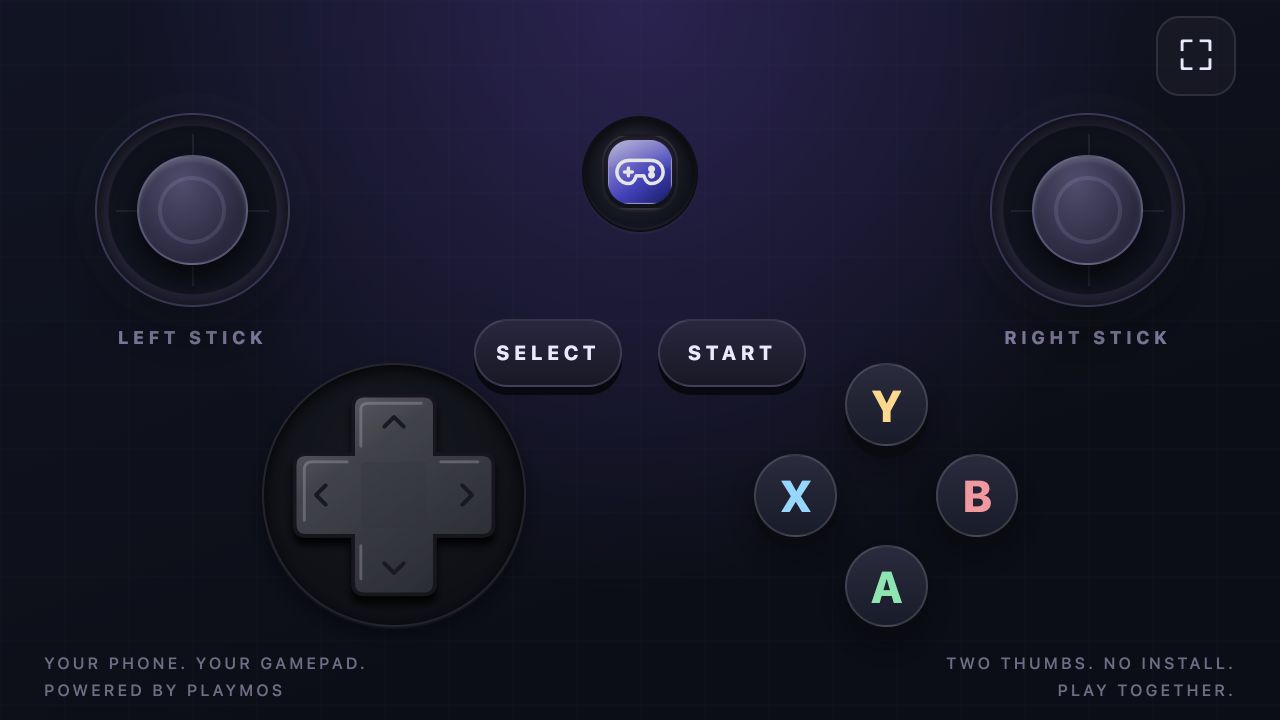
The phone layout has a classic eight-way cross D-pad, two thumbsticks, four face buttons, Start/Select and the embedded Playmos icon. Touch ownership is independent, diagonal regions are hittable, and cancellation, backgrounding and teardown release controls. The relay also neutralizes held input after 500 ms without updates.
Custom presentation and lifecycle#
Use mountPhoneController for a phone page on your own origin, mountVirtualGamepad for the controls alone, or VirtualGamepad for a custom renderer. Lower-level PlaymosControllers.create() exposes input/status/approval callbacks, host.pairCode, host.controllerUrl, host.approve(requestId) and host.close().
Use createControllerInput to select phone, then host, then gamepad input by default. Inactive devices cannot overwrite the selected owner. Its setEnabled(false) releases output while a dialog is open. Choose one active input source per player. Disable physical/keyboard driving while a phone owns the player; neutralize and fence queued commands on handoff. Destroy watchers, bridges and mounted panels when a game exits. Controller input never authorizes a paid entry, score or payout. Tabletop Rivals is the reference consumer of this same standalone package.